
No matter what you’re doing with CAN, Kvaser.com is the web’s most trusted source of CAN information.

From getting to know the protocol for the first time to advanced CAN discussion.
Our original text-only tutorial has been viewed by over half a million engineers. Our updated 8-part video course sets a new standard in CAN training.
Take a deep dive into one of the many HLP’s that are based on CAN – J1939, CANopen, MILcan, and more.
Get insights and resources on the latest development in the world of CAN.
Automotive
ECU development, calibration, diagnostics and more.
Industrial Automation
Tools to make things that make things.
Medical
Advanced CAN software for making advanced medical devices.
More Software
View the full list of partner software.
Find Your Solution:
The CANlib SDK makes it easy to work with a range of CAN hardware.
Our Linux Driver and SDK makes your development work easy.
Our free CAN bus monitor is designed with developers in mind.
Wireless, USB, PCI, Ethernet and more. Whatever you need, we’ve got a solution.
Your custom hardware, powered by our legendary quality and reliability.
Start from a standard product and apply a new, branded label and EAN (part number) to create your own product.
Create a complete solution for your customer by providing CAN hardware “locked” to your software.
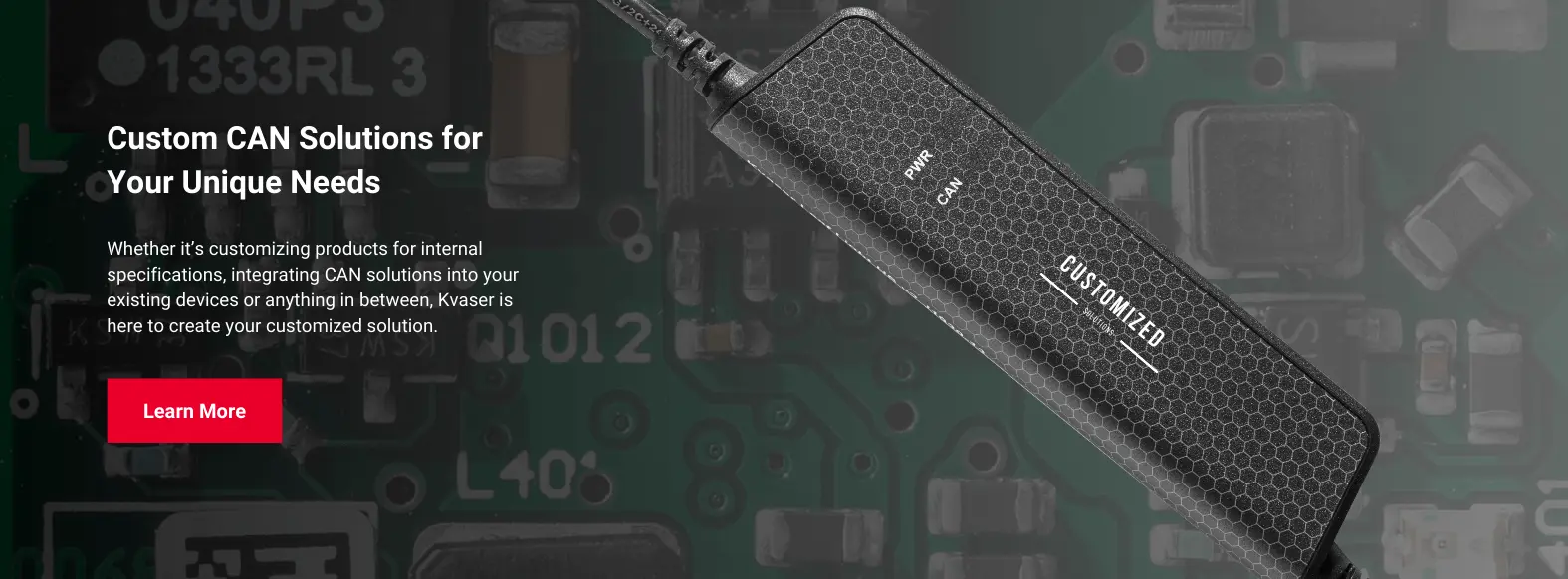
Need special features or custom layout? Put Kvaser’s 30 years of CAN hardware knowledge to work for you.
Whether you’re looking for OEM or ODM, Kvaser delivers expert, trusted solutions for the CAN industry. Find out more >>


The latest from Kvaser & Partners
Upcoming Events26
- Robotics Summit & Expo01 - 02 May, 2024United States
- VECS 202414 - 15 May, 2024

- CiA 18th international CAN Conference (iCC) 202414 - 15 May, 2024Germany


Latest News
- Kvaser
- PARTNER
-
 AVAI chooses Kvaser interfaces for AV system designs...
AVAI (Autonomous Vehicle Artificial Intelligence), an AV design and services company, has joined Kvaser's Technical Associate (TA)......
-
 Bryan Hennessy’s Q1/2024 SAE J3271 update...
There are applications for CAN that are considered non-traditional; not the fixed layout control system found in most CAN applicat......
-
 TKE’s new Wireless CAN Diagnostics Package...
TK Engineering* has packaged its CAN analyzer software, CANtrace, with a pair of Kvaser Air Bridge wireless CAN bridges and a Kvas......
CAN Stories
The Kvaser Mini PCI Express 2xHS v2 plays a vital role in Aristotle University's electric driverless vehicle

The Kvaser Mini PCI Express 2xHS v2 plays an important role in the creation of Aristotle University's driverless vehicle.
An innovative modular robotic manipulator relies on CAN interfaces for drive control

A project to modularize a manipulator for use in space uses Kvaser hardware, Copley Controls' servo drives and support from Actronic Solutions, both Kvaser technical associates
A CAN test system for accident reconstruction & road testing

Automotive forensic analysis experts use Kvaser interfaces in a real-time data recorder for use in road tests and accident reconstruction.